If you’re downloaded a mod for Animal Crossing: New Leaf and no longer like the vibe or wish to uninstall it to install something else then this guide is for you! It’s a simple process won’t take long to do at all. This guide will be for both emulator and consoles users.
This guide will also how to pause mods at the bottom in case you’re wanting to know how to play the game vanilla for whatever reason!
What You’ll Need
If you’re on console you’re going to need a computer alongside an SD card reader. You can use the CFW software FTPD to do this wirelessly without plugging your SD card into your computer but for this guide I’ll be using an SD card reader plugged into my PC.

How to Uninstall Mods on an Emulator (Citra/Azahar, Etc)
Installing on an emulator, such as Citra or Azahar, is really easy, extremely straight forward and only takes a few seconds to do compared to console.
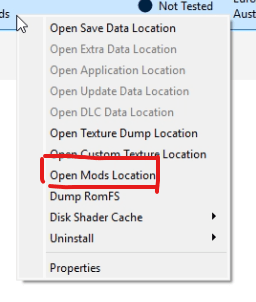
Right click on your ROM of AC:NL/AC:NLWA.

Then click on “Open Mods Location”.
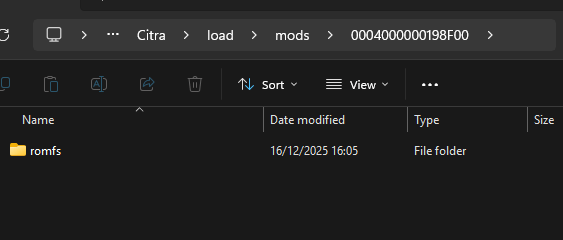
You’ll be greeted by ACNL’s mod directory, depending on what mods you’ve installed it will look something like this. If there’s a code.bin file from any code patch mods, they will be included within this directory space too.
Depending on what mod you’re wanting to delete you’ll need to find out what the respective file name is. You can do this by finding the mod on GameBanana and click on file info next to the download button.
If you have a code.bin mod installed it will always be outside of the romfs folder because it’s an ExeFS mod instead. In that case, you would simply just delete the code.bin file.
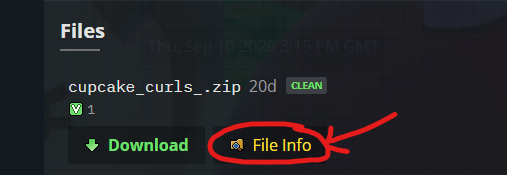
Click on file contents and you’ll see a list of all of the files and folders. In this example, I’m wanting to uninstall the cupcake curls wig mod which uses the hlmt_wig_dumpling.bcres file so you can delete that file.
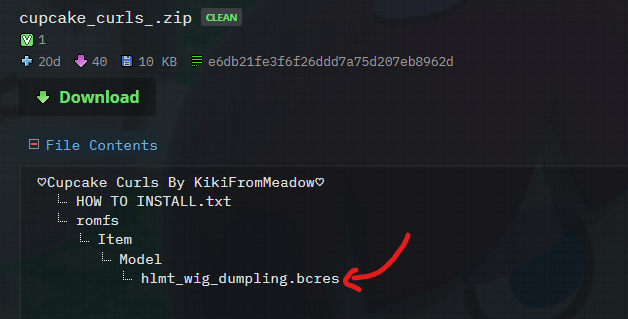
If you wish to uninstall just that mod by itself then follow that if you wish to delete all of your currently installed mods then delete the romfs folder that you found in your ACNL modding directory.
How to Uninstall Mods on an Console
Removing mods on console is a similar process to installing them in terms of finding the directory but similar to the emulator uninstalling you just delete the mod files. It’s also pretty much the identical process to uninstalling on emulator but you’ll need to insert your SD card into your computer or you can alternatively use FTPD for that part.
Firstly, power off your console after and insert your SD card into your PC. Any downloaded mods will be located in the following directory:
: / > luma > titles
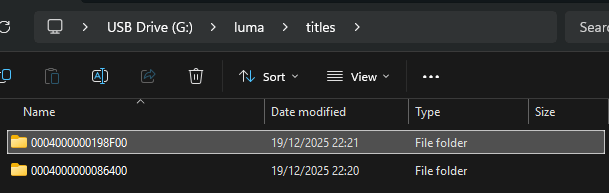
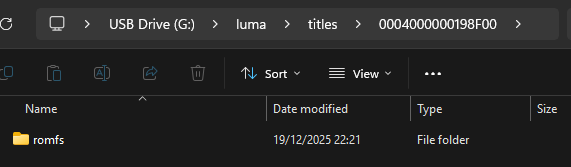
MY EXAMPLE: : / > luma > titles > 0004000000198F00 > romfs
Just like the emulator uninstalling process, depending on what mod you’re wanting to delete you’ll need to find out what the respective file name is. You can do this by finding the mod on GameBanana and click on file info next to the download button.
You can find out the file name by clicking on the file contents and you’ll see a list of all of the files and folders. In this example, I’m wanting to uninstall the cupcake curls wig mod which uses the hlmt_wig_dumpling.bcres file so you can delete that file.
However, if you’re wanting to delete every single mod you’ve installed then simply delete the romfs folder that you found in your ACNL modding directory.
How to Pause Mods on Console
If you’re wanting to keep your mods but switch to vanilla gameplay you can do this very easily with only a few steps!
Power off your console and then hold the SELECT button whilst powering on your console to boot into the luma settings, it should look like this:

Navigate to “Enable Game Patching”, it will a cross inside so it’s like this:
( x ) Enable Game Patching
To turn off game mods you’re going to want to disable that so press the A button on it so it now looks like this:
( ) Enable Game Patching
After you’ve done that, save and exit the Luma menu. Your game’s mods will be now be disabled when you boot up the game. Please note that this will disable mods for any other game too (for example, tomodachi life mods).

