Confused on this guide and still need help for downloading my mods? Join my Discord server here. I’ll do my very best to help you, you can also be notified about my new mods/behind the scenes on mod packs and more!
Since starting my Animal Crossing: New Leaf modding journey I’ve been experimenting with the ACNL Reditor tool to create more complex mods, one of them being my autumn falling leaves mod that’s I’m super proud of.
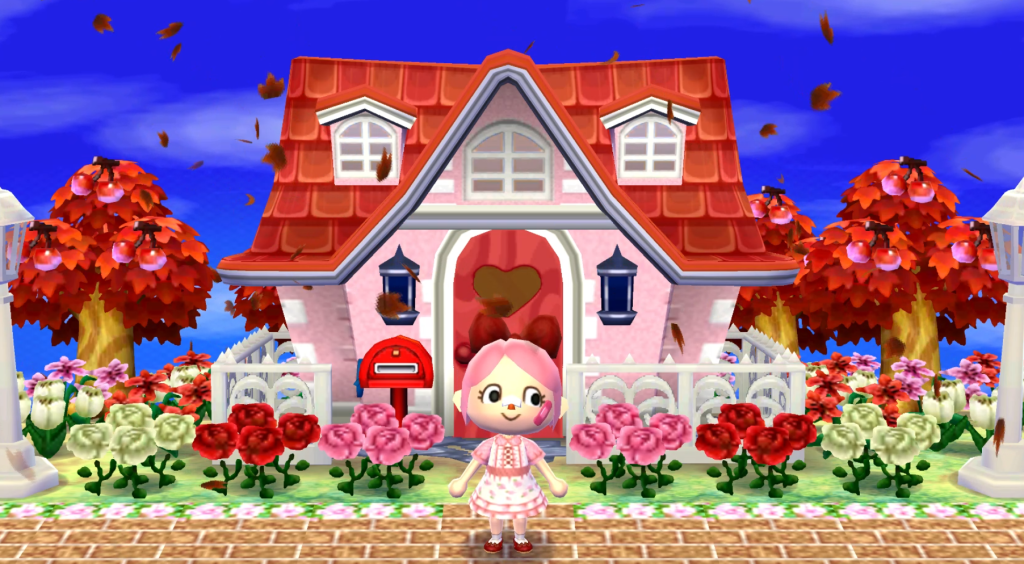
The installation for this mod isn’t that much more complex but it’s different compared to my other guide so I thought I’d write a guide on how to install it here. Like my other guide, I’ll be including it in the README file in mod downloads so that if anything changes I can easily edit this guide rather than updaating the mod itself.
Where to Install My Mods?
You can find a list of the mods I have made on this page here and my GameBanana profile here.
What You’ll Need
As you can probably already guess, your console needs to be modded meaning that you have Luma installed. So, if your console isn’t modded you won’t be able to install any mods onto your console. If you’re interested in modding your console always make sure to follow/refer the official written guide that you can check out here. Do not follow any video guide for modding your console, you’ll risk bricking it – I understand that sometimes people might find it easier to watch someone modding their own console but the risk is absolutely not worth it at all, if you need assistance modding your console join the official homebrew discord server and ask for support there instead.
If you’re on the Citra/Azahar emulator, you’ll be able to install my mods instantly as you only need to know how to find your mod folder which is super simple, there is a short written guide below if you’re unsure on how to do this.
Also, before doing anything make sure to backup your save and then store your backup somewhere safe like on your PC, this is just a safety precaution so that if something does go wrong in any shape or form you’ll have your save data stored somewhere safe. My mods don’t ever mess with your save data at all (all of my mods are overrides), but it’s better to be safe and always do a backup when messing around with anything at all.
Always Read the README File/Description
When installing any mods (mine or someone else’s mod) make sure to ALWAYS read the README file AND the description, this text file will always inform you on how to correctly install your desired mod so that it works correctly for your game and to avoid errors. The description of the mod also mentions cruical information about the mod so it’s best that you read both before installing the mod.
How to Install For Emulator (Azahar)
Installing on Azahar is really easy, extremely straight forward and only takes a few seconds to do.
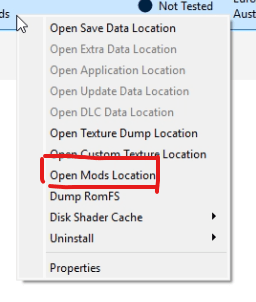
Right click on your ROM of AC:NL/AC:NLWA.

Then click on “Open Mods Location”.
Unlike my other mods, with my ACNL Reditor mods you’ll need to place it in that mods location folder you just opened. Your directory should look something like this:

Do not place the the code.bin file inside of the romfs folder otherwise it will not work.
How to Install For Console (3ds/2ds)
Adding mods to your games on consoles is a bit more work compared to Citra but is really easy.
Firstly, make sure your console has game patching enabled. To turn this on power off your console and then hold the SELECT button whilst powering on your console to boot into the luma settings, it should look like this:

Navigate to “Enable Game Patching” and make sure it has a cross inside so it’s like this:
( x ) Enable Game Patching
Power off your console after enabling it and insert your SD card into your PC, when downloading any mods for the console you’re going to want to put them into the following directory:
: / > luma > titles
If it’s your first time installing any mods for the 3ds then you probably won’t have any title ID folders inside of there. For this section you’re going to want to know what version of AC:NL you’re playing and region it is. The reason why this is important is because each version (AC:NL WITHOUT Welcome Amiibo & AC:NL WITH Welcome Amiibo) both have different title IDS and then the region also has a different title ID too, so because of this you’ll need to know what title ID your game uses to install it correctly.
(BASE GAME) Animal Crossing: New Leaf Title IDs
These are the title IDs for the base game of Animal Crossing: New Leaf. You’ll need to use these title IDs if you had to install the Welcome Amiibo update/your AC:NL box doesn’t have “Welcome Amiibo” on it or has this game icon on your HOME menu:

If you have the European Ver. of Animal Crossing: New Leaf (BASE GAME): 0004000000086400
If you have the USA Ver. of Animal Crossing: New Leaf (BASE GAME): 0004000E00086300
If you have the Japanese Ver. of Animal Crossing: New Leaf (BASE GAME): 0004000000086200
(WELCOME AMIIBO) Animal Crossing: New Leaf Title IDs
These are the title IDs for Animal Crossing: New Leaf (WELCOME AMIIBO). You’ll need to use these title IDs if your AC:NL box does have “Welcome Amiibo” on it or if your AC:NL has this game icon on your HOME menu:

If you have the European Ver. of Animal Crossing: New Leaf (WELCOME AMIIBO): 0004000000198F00
If you have the USA Ver. of Animal Crossing: New Leaf (WELCOME AMIIBO): 0004000000198E00
If you have the Japanese Ver. of Animal Crossing: New Leaf (WELCOME AMIIBO): 0004000000198D00

After finding out what title ID you have for your game create a folder for the correct corresponding title ID so for example:
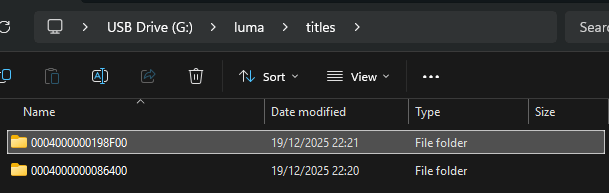
: / > luma > titles > 0004000000198F00
(I live in the UK so I need the European title ID of AC:NL/WA)
Now unlike my other mod installation guide, you don’t want to place your code.bin inside of the romfs folder!! You place it outside of the romfs folder so it looks like this:
MY EXAMPLE: : / > luma > titles > 0004000000198F00 > code.bin
As you can see in the image I do have a romfs folder, that folder is from other ACNL mods that are not code.bin patches! If your pc asks you to merge because you’re downloading another code.bin file then you’ll be overwriting the mod completely as any other code.bin files will automatically conflict with each other (in other words, they clash because they use the same file so chose which mod you want wisely).
Please make sure to not edit/alter or modify the file to ensure that the mod works correctly.
After doing all of the previous steps mentioned, insert your SD card back into your console and then boot up your game, the mods should be working, if they’re not then ensure you have followed all of the previous steps correctly, refer to the modder’s README file included in the mod’s zip file or contact the modder for help where possible. In this case, if you’re installing any of my work feel free to contact me for help via my discord server, gamebanana or tumblr.

